Rosbag 重放模拟#
步骤#
-
下载并解压缩示例地图.
- 您也可以手动下载 地图.
gdown -O ~/autoware_map/ `https://docs.google.com/uc?export=download&id=1A-8BvYRX3DhSzkAnOcGWFw5T30xTlwZI` unzip -d ~/autoware_map/ ~/autoware_map/sample-map-rosbag.zip -
下载示例 rosbag 文件.
- 您也可以手动下载这个 rosbag 文件.
gdown -O ~/autoware_map/ `https://docs.google.com/uc?export=download&id=1sU5wbxlXAfHIksuHjP3PyI2UVED8lZkP` unzip -d ~/autoware_map/ ~/autoware_map/sample-rosbag.zip -
检查你是否有
~/autoware_data文件夹和文件.$ cd ~/autoware_data $ ls -C -w 30 image_projection_based_fusion lidar_apollo_instance_segmentation lidar_centerpoint tensorrt_yolo tensorrt_yolox traffic_light_classifier traffic_light_fine_detector traffic_light_ssd_fine_detector yabloc_pose_initializer如果没有,请按照 手动下载 档案进行作.
注意#
- 样本地图和rosbag:版权所有 2020 TIER IV, Inc.
- 出于隐私考虑,rosbag 不包含图片数据,这会导致:
- 无法使用此示例 rosbag 测试交通灯识别功能.
- 目标检测精度降低.
如何运行 rosbag 重放模拟#
如果您更喜欢使用图形用户界面 (GUI) 而不是命令行来启动和管理仿真,请参阅本文档末尾的 使用 Autoware Launch GUI 部分,以获取分步指南.
-
启动 Autoware.
source ~/autoware/install/setup.bash
ros2 launch autoware_launch logging_simulator.launch.xml map_path:=$HOME/autoware_map/sample-map-rosbag vehicle_model:=sample_vehicle sensor_model:=sample_sensor_kit
请注意,您不能在此处使用
~而不是$HOME.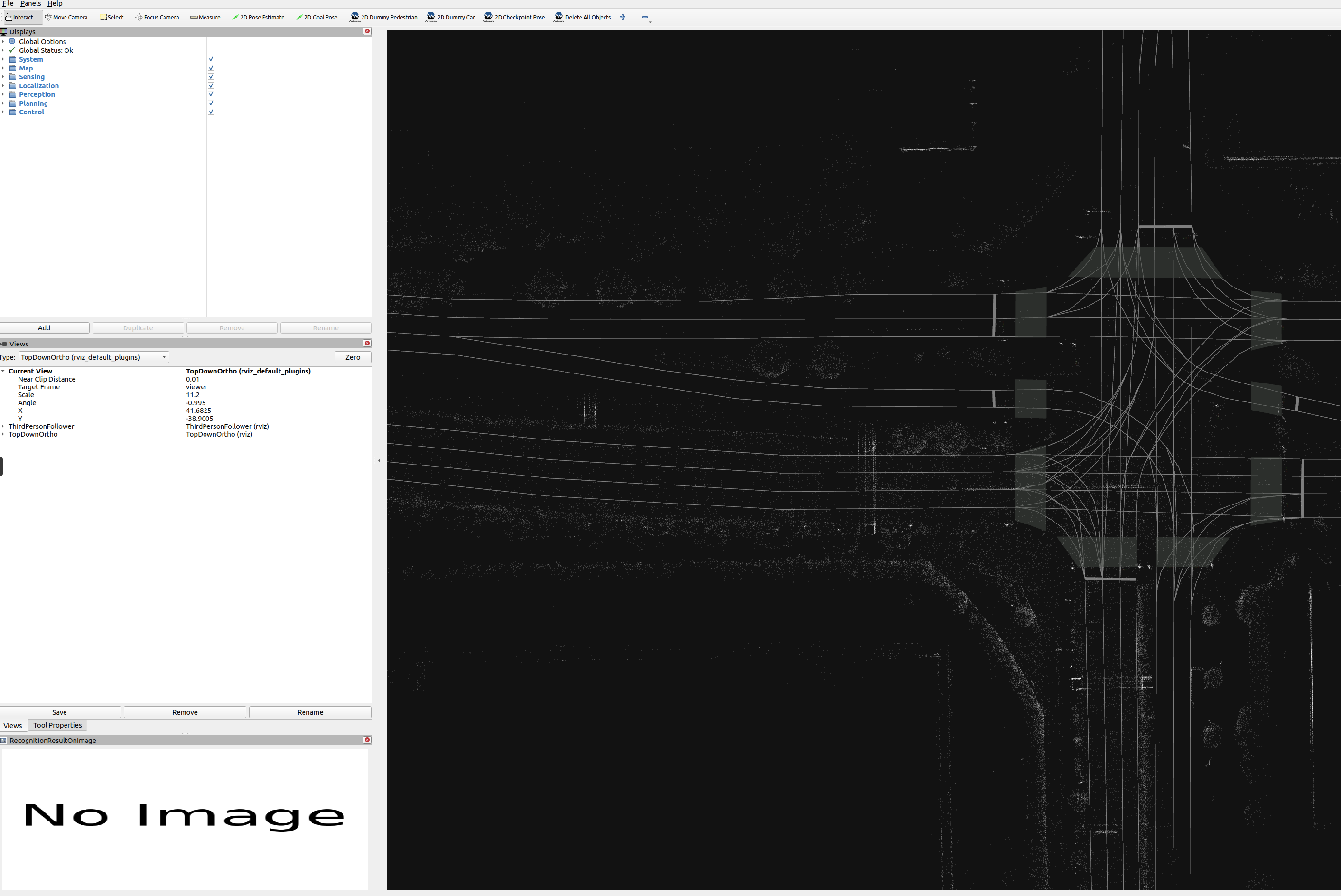
⚠️ 在播放
rosbag之前,您可能会在终端中遇到错误和警告消息.这是正常行为.一旦播放rosbag并进行适当的初始化,这些作就会停止 -
播放示例 rosbag 文件.
source ~/autoware/install/setup.bash
ros2 bag play ~/autoware_map/sample-rosbag/ -r 0.2 -s sqlite3
由于
rosbag中的时间戳与当前系统时间戳之间存在差异,Autoware 可能会在终端中生成警告消息,提醒这种不匹配.这是正常行为.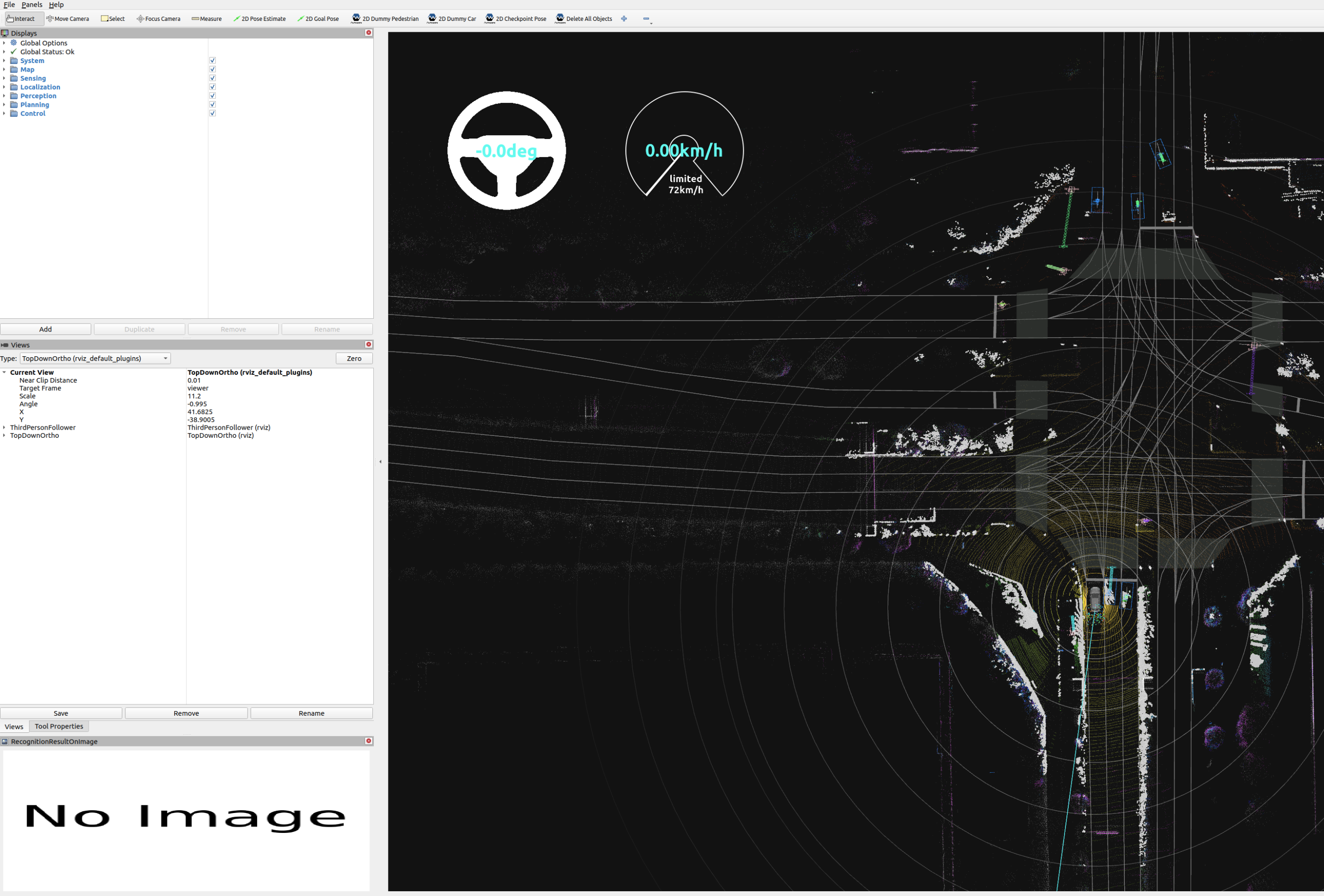
-
要将视图聚焦在自主车辆上,请将 RViz 视图面板中的
Target Frame从viewer更改为base_link.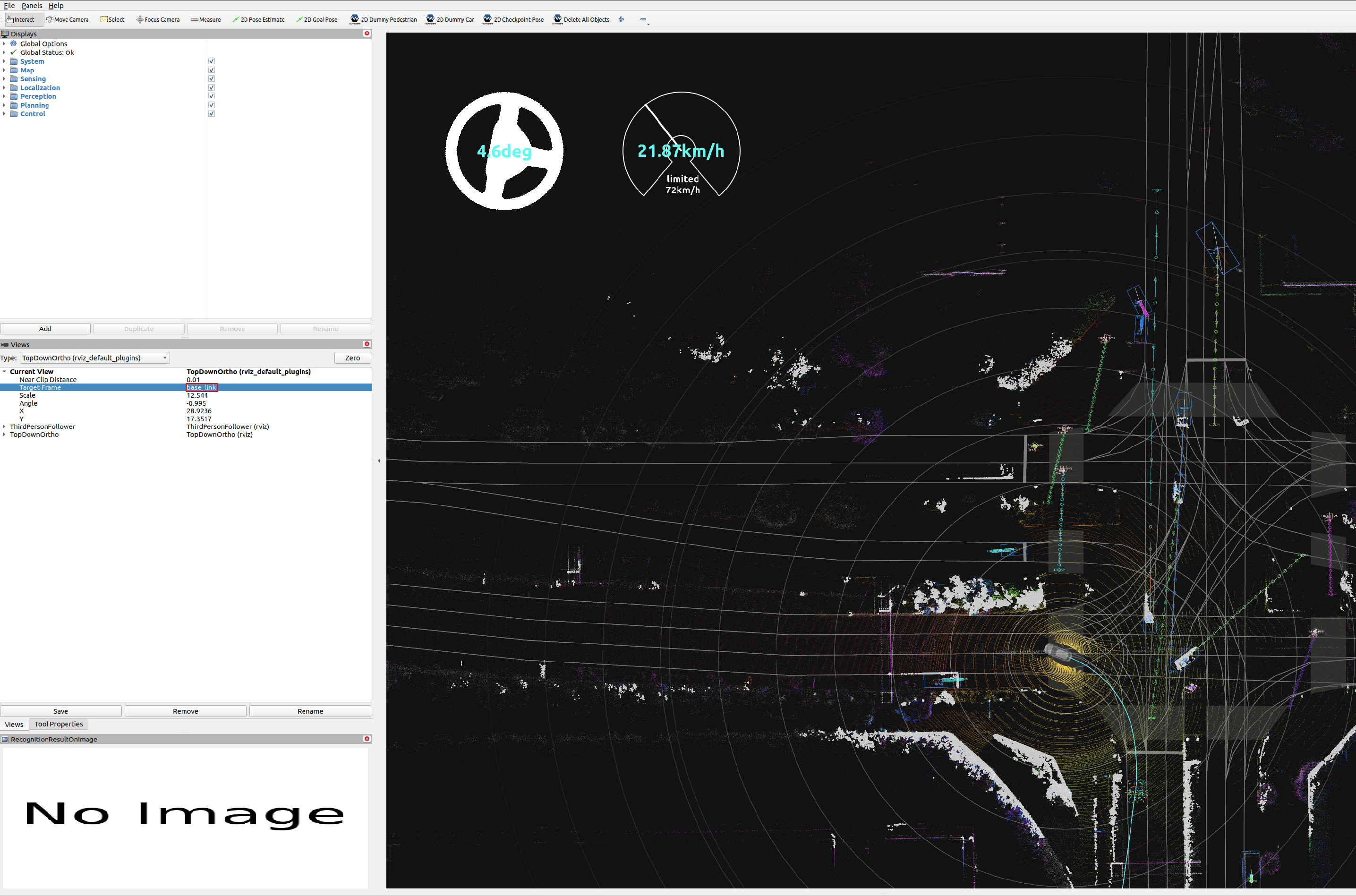
-
要将视图切换到
Third Person Follower等,请在 RViz 视图面板中更改Type.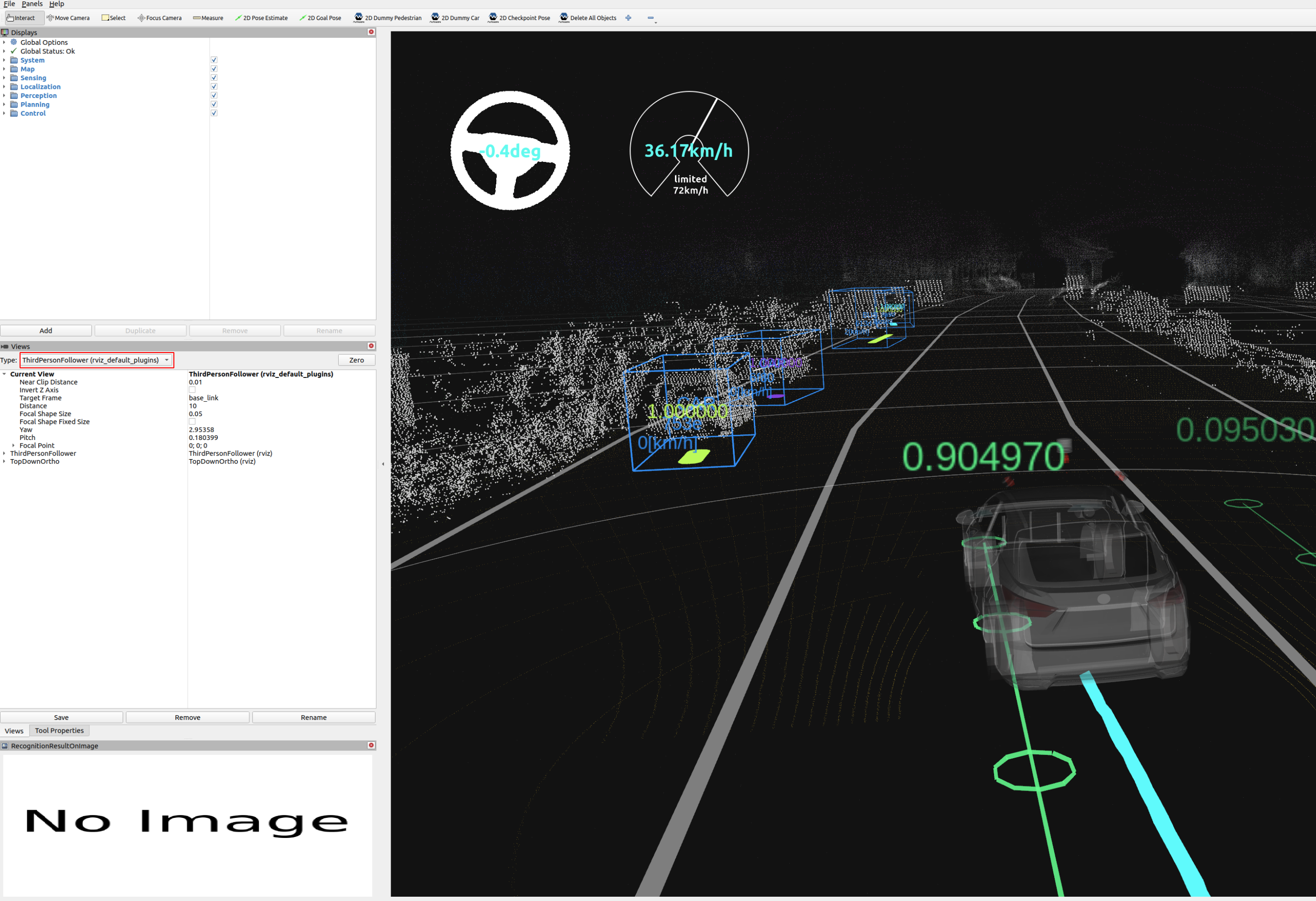
使用 Autoware Launch GUI#
本节提供了使用 Autoware Launch GUI 启动和管理 rosbag 重放模拟的分步指南.提供了上一节中提供的命令行说明的替代方法.
Autoware Launch GUI 入门#
-
安装: 确保您已安装 Autoware Launch GUI.安装说明.
-
启动 GUI: 从应用程序菜单中打开 Autoware Launch GUI.
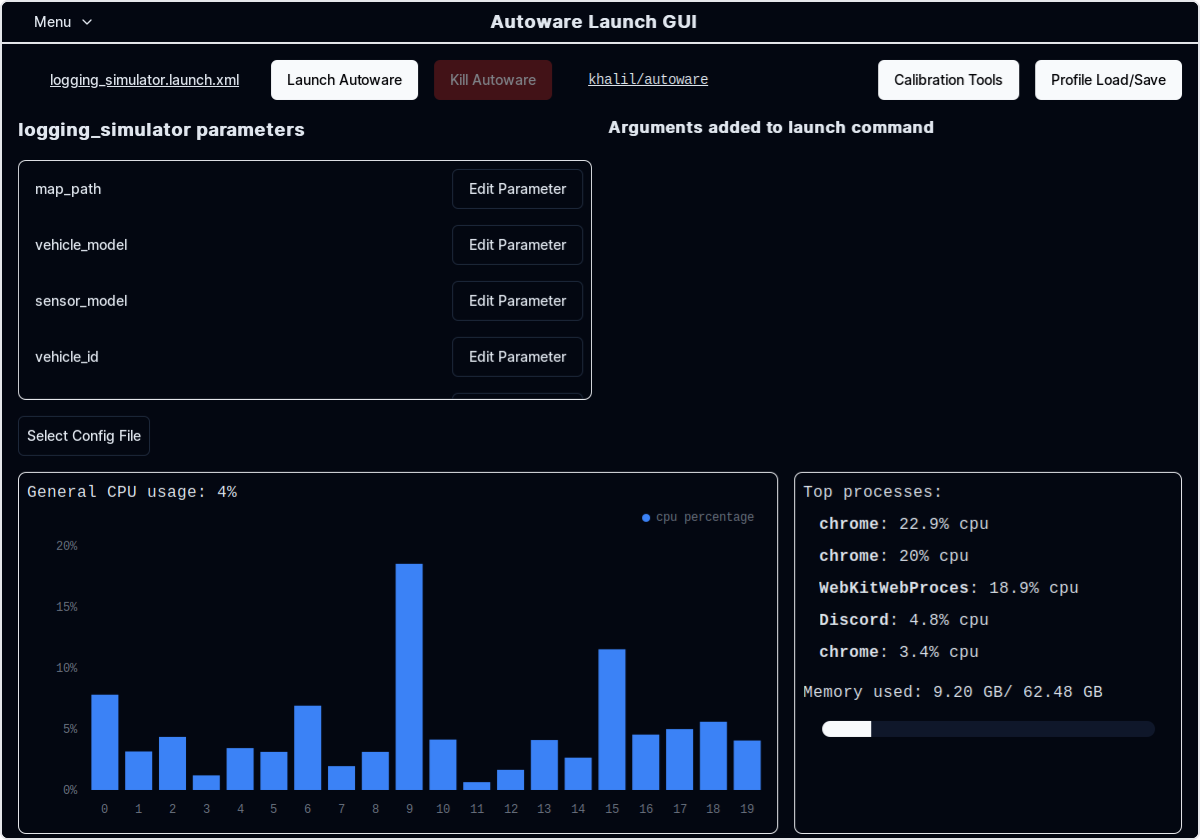
启动日志记录模拟#
-
设置 Autoware 路径: 在 GUI 中,设置 Autoware 安装的路径.
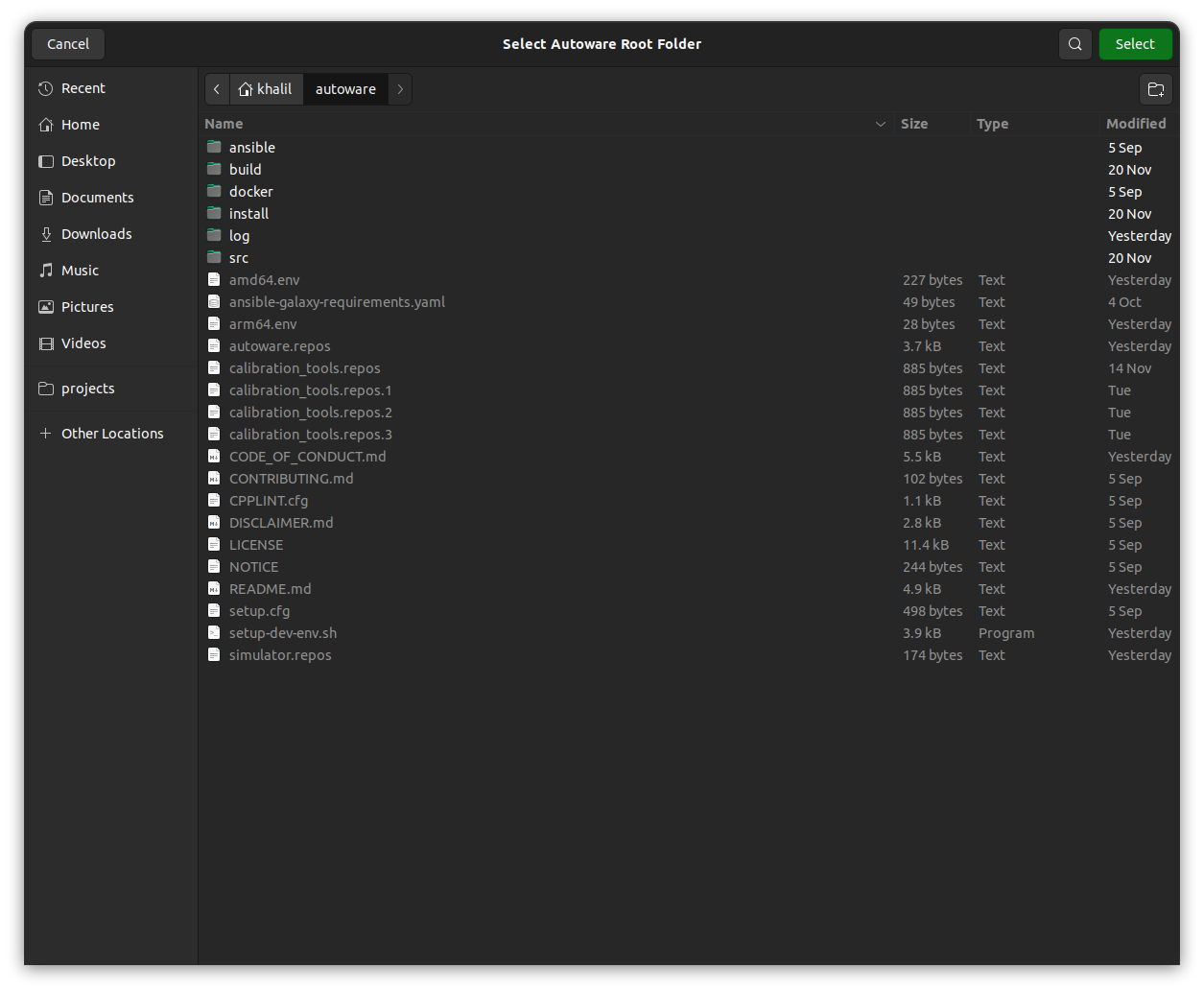
-
选择 Launch File(启动文件): 选择
logging_simulator.launch.xml作为车道行驶场景.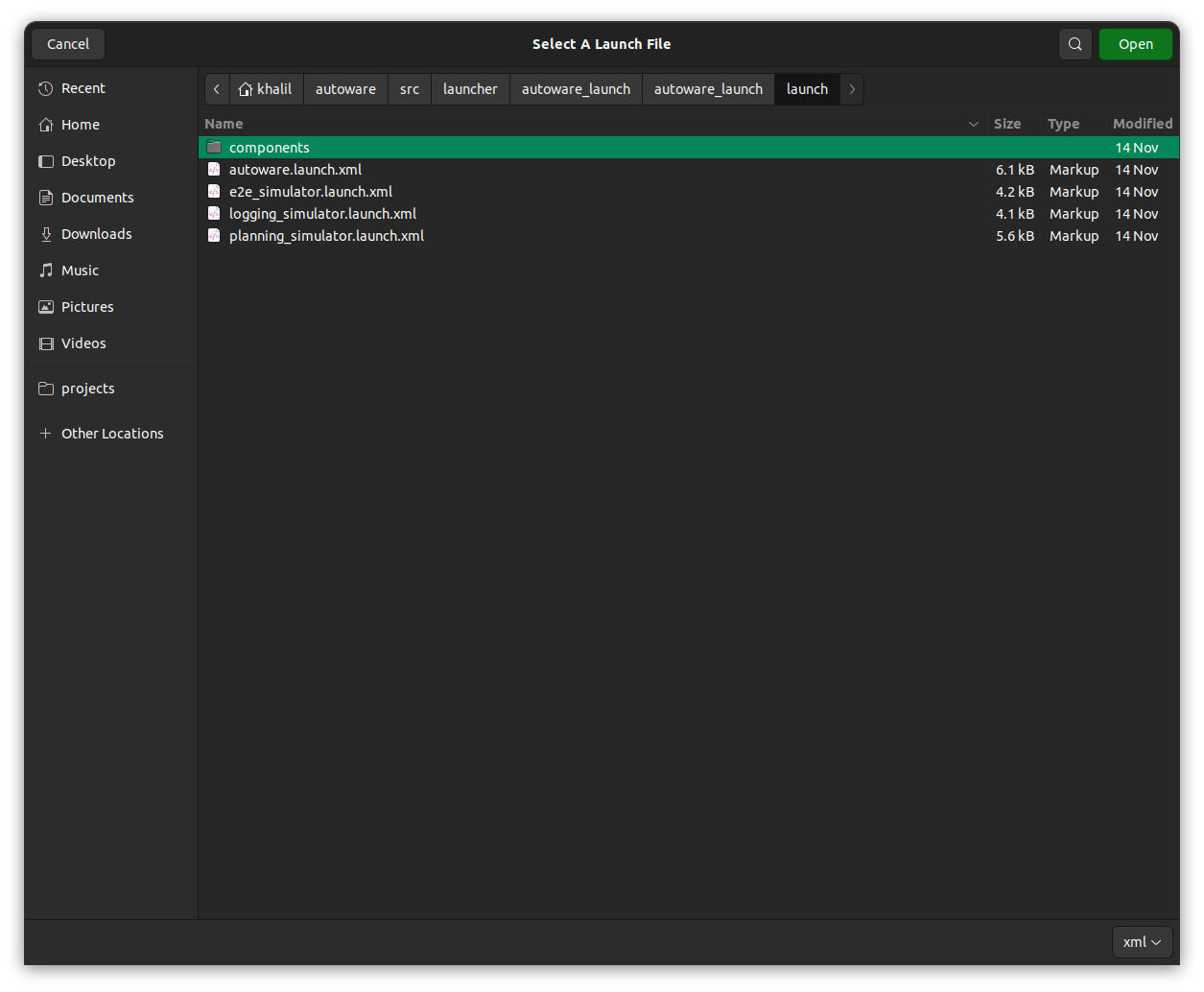
-
自定义参数: 根据需要调整
map_path、vehicle_model和sensor_model等参数.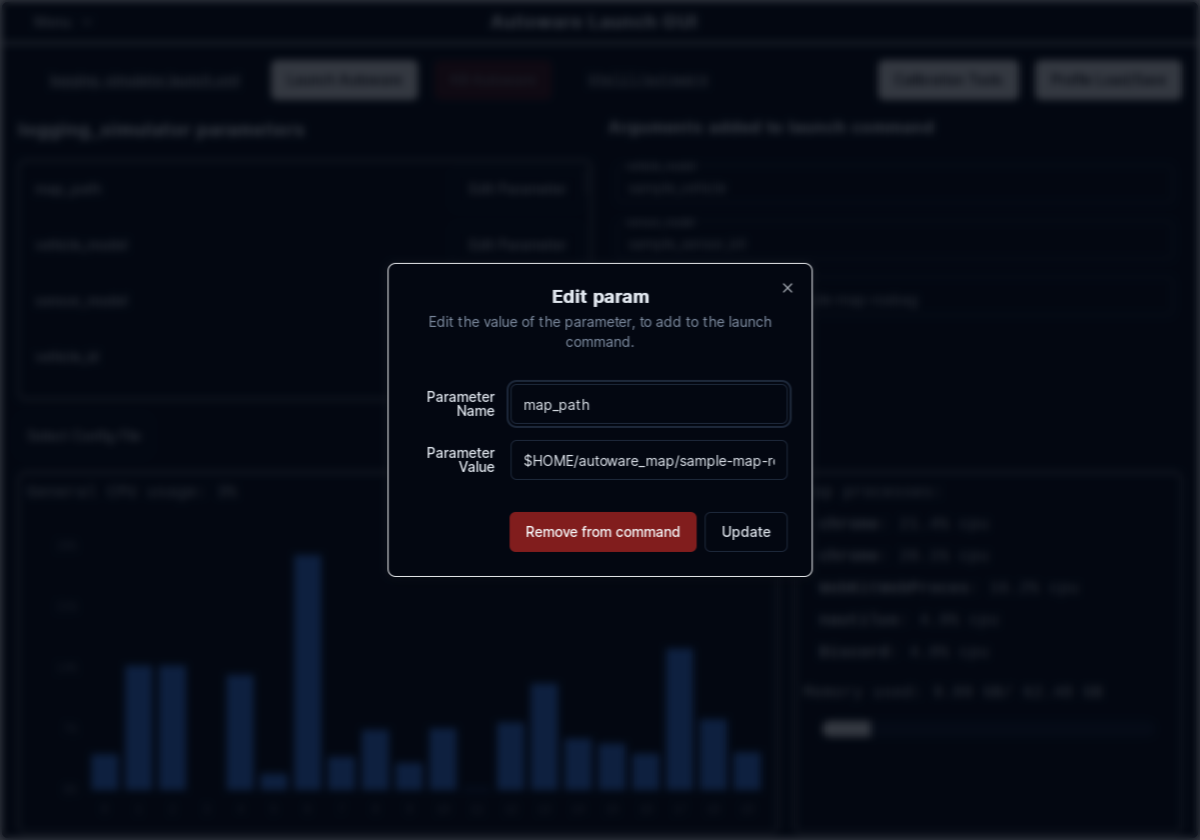
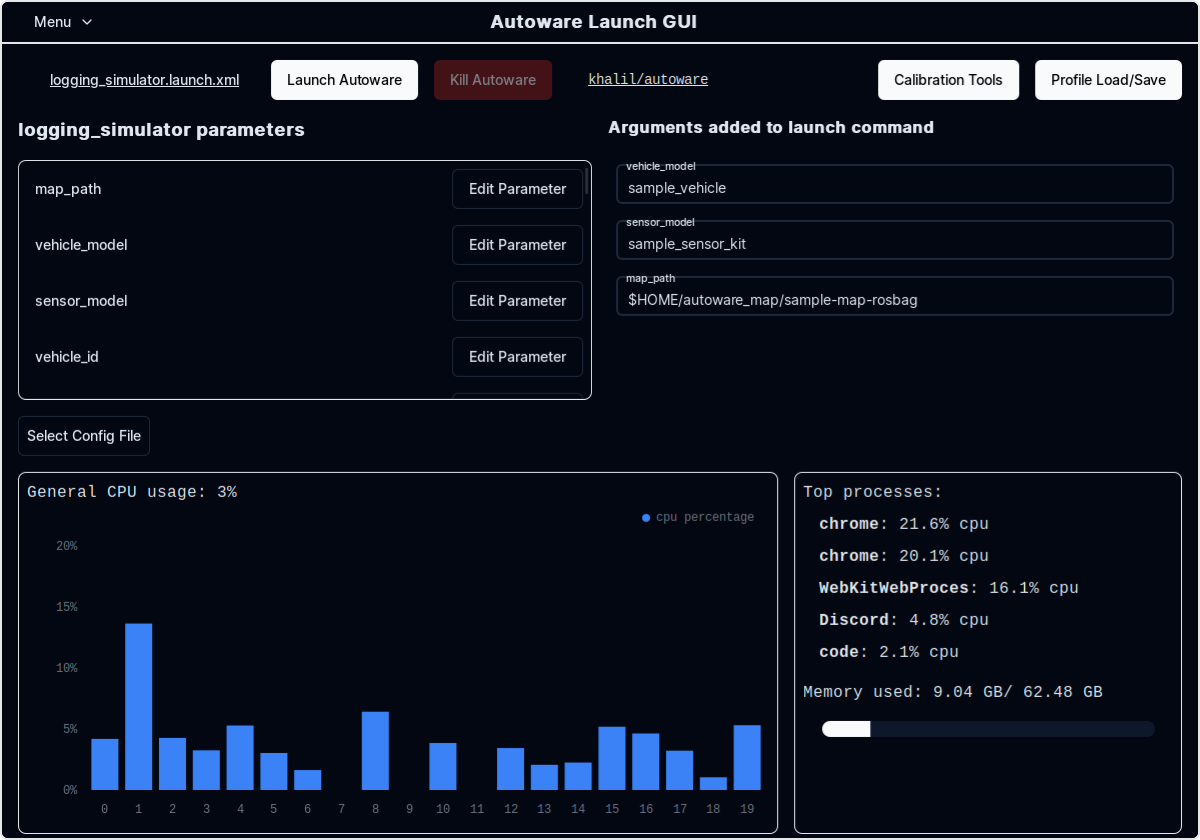
-
开始模拟: 单击启动按钮开始模拟并访问所有日志.
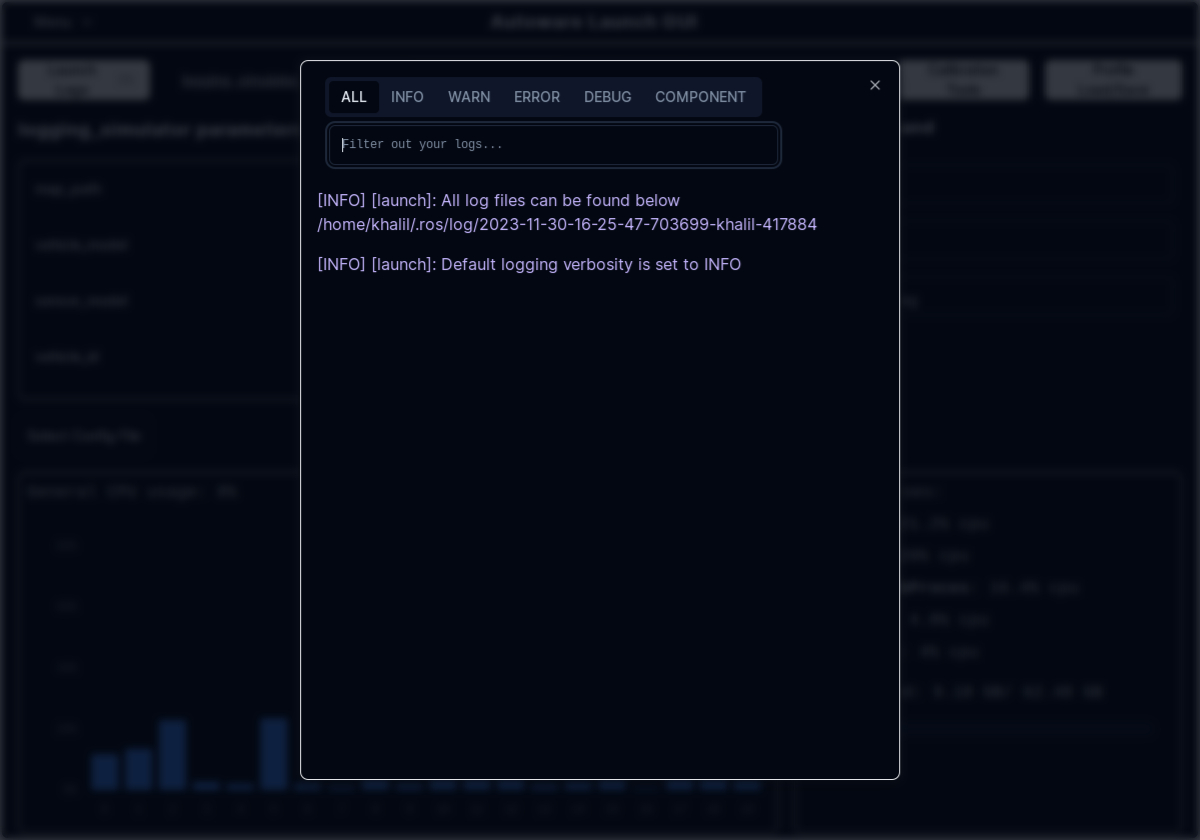
-
播放 Rosbag: 移动到
Rosbag选项卡并选择您要播放的 rosbag 文件.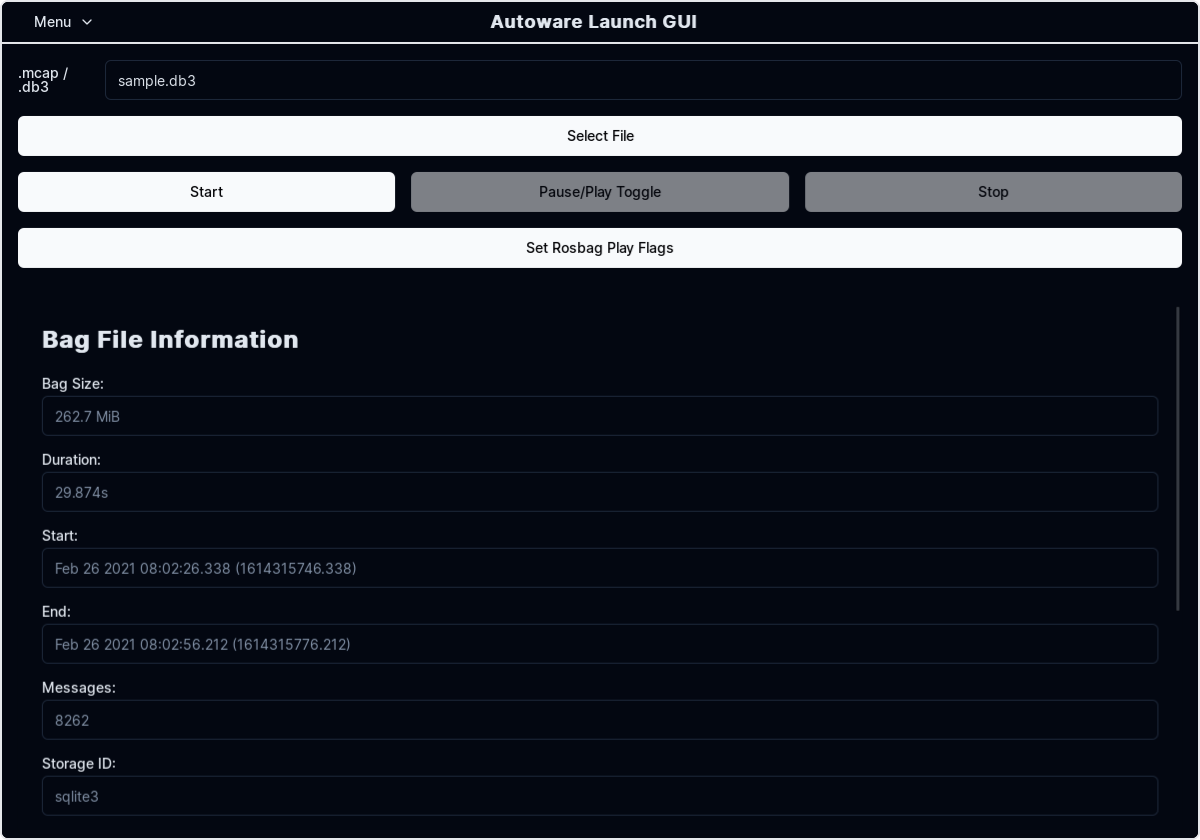
-
调整播放速度: 根据需要调整播放速度和您希望自定义的任何其他参数.
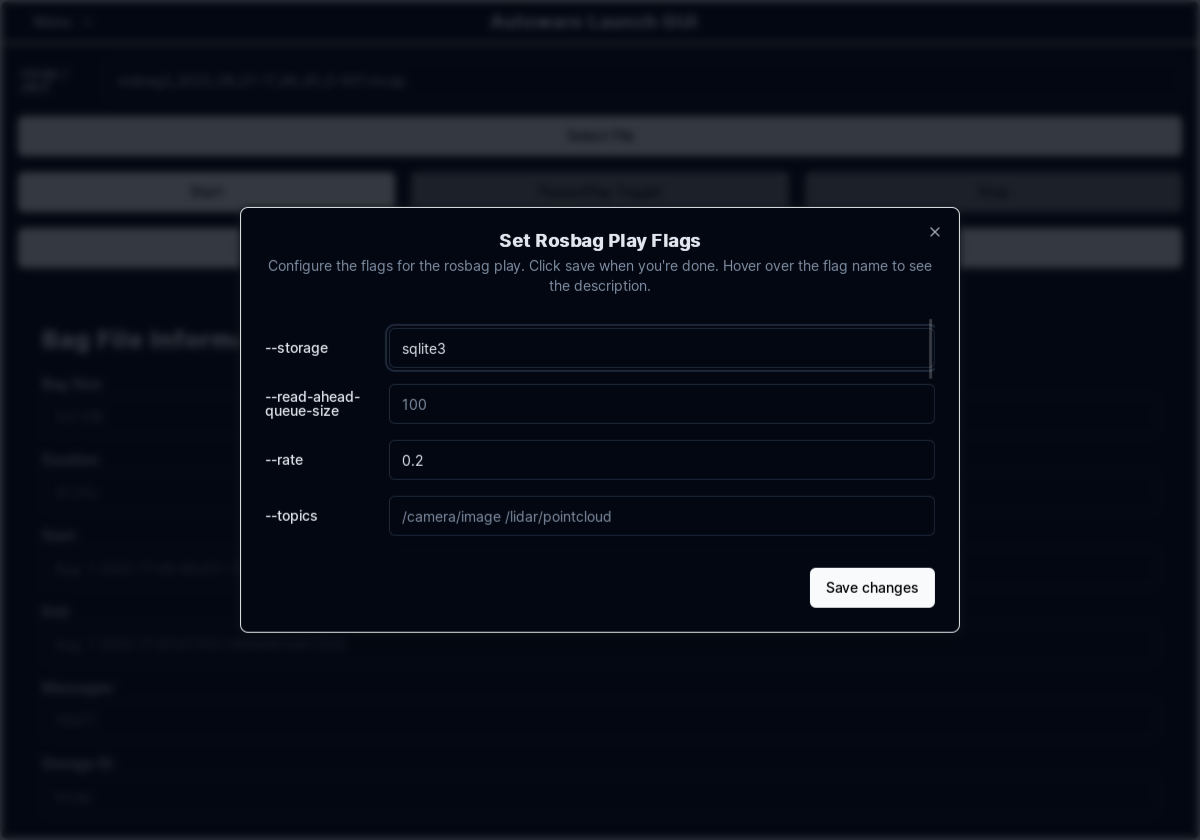
-
开始播放: 单击播放按钮开始 rosbag 播放,并可以访问
pause/play、stop和speed slider等设置5.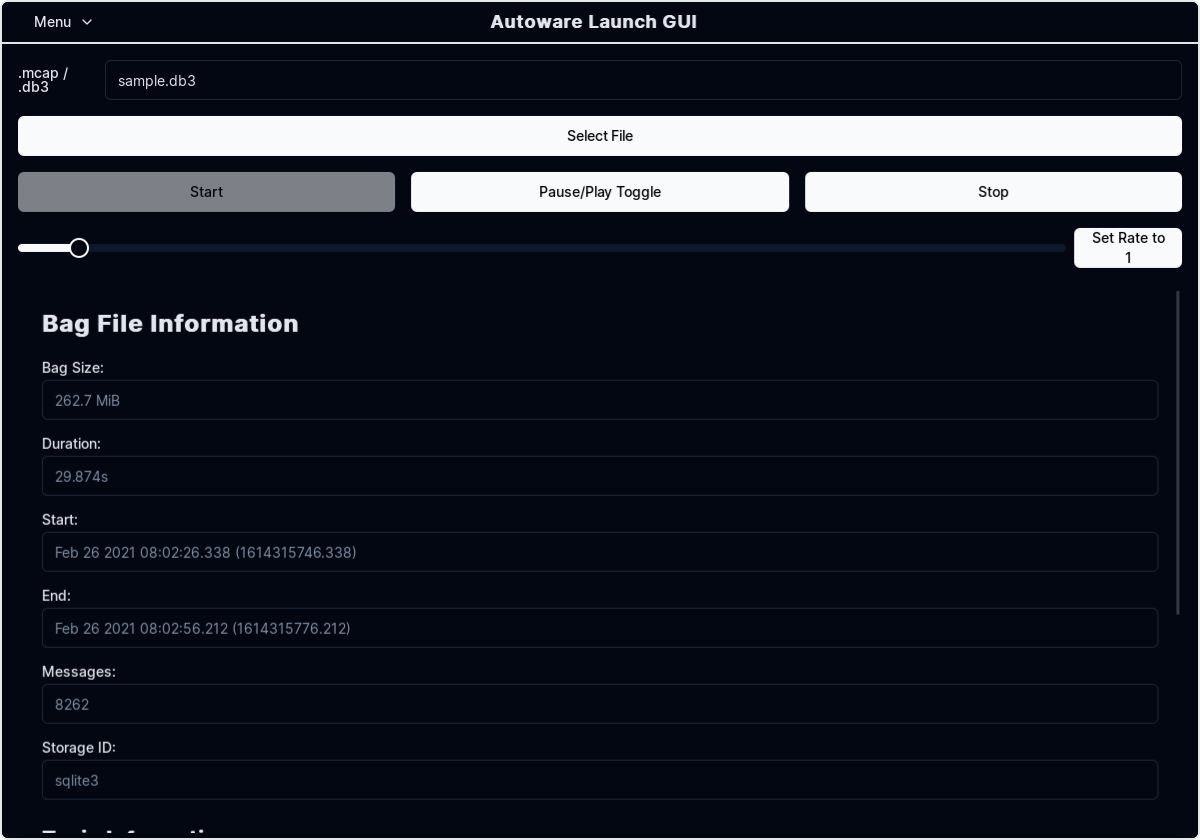
-
查看模拟: 移动到
RViz窗口以查看模拟. -
要将视图聚焦在自我车辆上,请将 RViz 视图面板中的
Target Frame从viewer更改为base_link. -
要将视图切换到
Third Person Follower等,请在 RViz 视图面板中更改Type.